
Media Bar
A Jellyfin Plugin



Reporting Issues
If you face issues relating to the visuals or behaviour of buttons added by the Media Bar please report them on MakD's repo (the one this is forked from). This plugin pulls the content from their repo directly and is only in control of adding it without the need for modifying your JF install files.
Any issues with plugin's settings (including using a playlist as your avatar's playlist) should be made here.
Development Update - 20th August 2025
Hey all! Things are changing with my plugins are more and more people start to use them and report issues. In order to make it easier for me to manage I'm splitting bugs and features into different areas. For feature requests please head over to https://features.iamparadox.dev/ where you'll be able to signin with GitHub and make a feature request. For bugs please report them on the relevant GitHub repo and they will be added to the project board when I've seen them. I've found myself struggling to know when issues are made and such recently so I'm also planning to create a system that will monitor a particular view for new issues that come up and send me a notification which should hopefully allow me to keep more up to date and act faster on various issues.
As with a lot of devs, I am very momentum based in my personal life coding and there are often times when these projects may appear dormant, I assure you now that I don't plan to let these projects go stale for a long time, there just might be times where there isn't an update or response for a couple weeks, but I'll try to keep that better than it has been. With all new releases to Jellyfin I will be updating as soon as possible, I have already made a start on 10.11.0 and will release an update to my plugins hopefully not long after that version is officially released!
Installation
Prerequisites
- This plugin is based on Jellyfin Version
10.10.7 - The following plugins are required to also be installed, please following their installation guides:
- File Transformation (https://github.com/IAmParadox27/jellyfin-plugin-file-transformation) at least v2.2.1.0
Installation
- Add
https://www.iamparadox.dev/jellyfin/plugins/manifest.jsonto your plugin repositories. - Install
Media Barfrom the Catalogue. - Restart Jellyfin.
- Force refresh your webpage (or app) and you should see your new Media Bar at the top of the home page.
Upcoming Features/Known Issues
If you find an issue with any of the sections or usage of the plugin, please open an issue on GitHub.
FAQ
I've updated Jellyfin to latest version but I can't see the plugin available in the catalogue
The likelihood is the plugin hasn't been updated for that version of Jellyfin and the plugins are strictly 1 version compatible. Please wait until an update has been pushed. If you can see the version number in the release assets then please make an issue, but if its not in the assets, please wait. I know Jellyfin has updated, I'll update when I can.
I've installed the plugins and the media bar doesn't appear. How do I fix?
This is common, particularly on a fresh install. The first thing you should try is the following
- Launch your browsers developer tools
- Open the Network tab across the top bar
- Check the Disable cache checkbox
- Refresh the page while the dev tools are still open
Credits
Credits for this plugin go to @MakD for his original work and to @BobHasNoSoul and @SethBacon for their influence to MakD. For full credits see below in the original README content
Original README
Original README.md from MakD
Jellyfin-Media-Bar - Now with Play Now Function


IMP UPDATE — We have dropped support for the normal CSS version (for now). (It still works, but there will be no further updates till the fullscreen mode is stabilized)
The fullscreen version has a new look (in beta), and support for different screen sizes has been added. For any visual goof-ups, please open a bug report, including the device being used and whether it is encountered in portrait or landscape mode.
Thanks to the Man, the Legend BobHasNoSoul for his work on the jellyfinfeatured and SethBacon and TedHinklater for their take on the Jellyfin-Featured-Content-Bar.
Here I present my version with some code improvements, loading optimizations, and security enhancements. Works best with the Zombie theme (Shameless Plug @import url(https://cdn.jsdelivr.net/gh/MakD/zombie-release@latest/zombie_revived.css);, visit the repo for more color schemes).
Before Installing, please take a backup of your index.html file
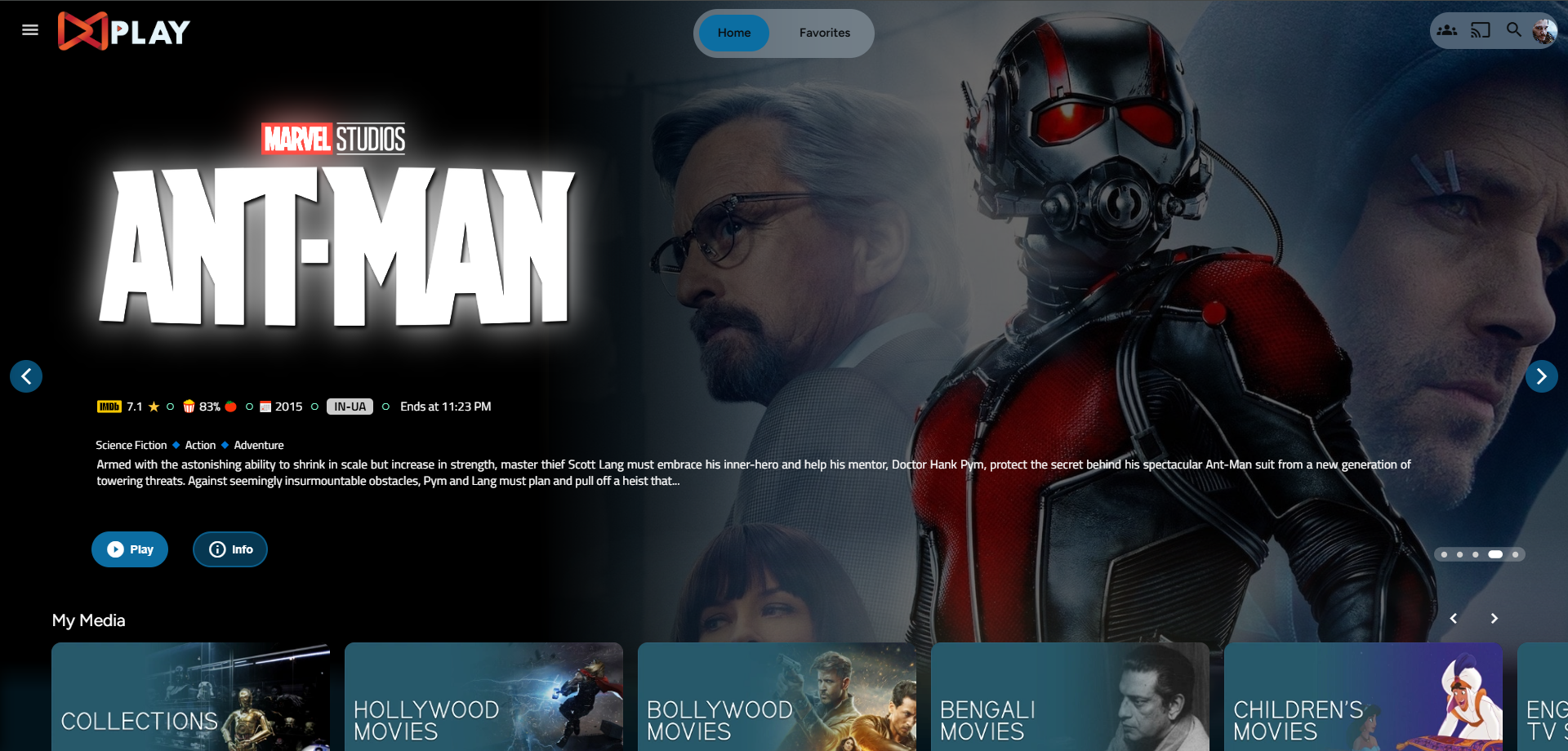
Desktop Layout
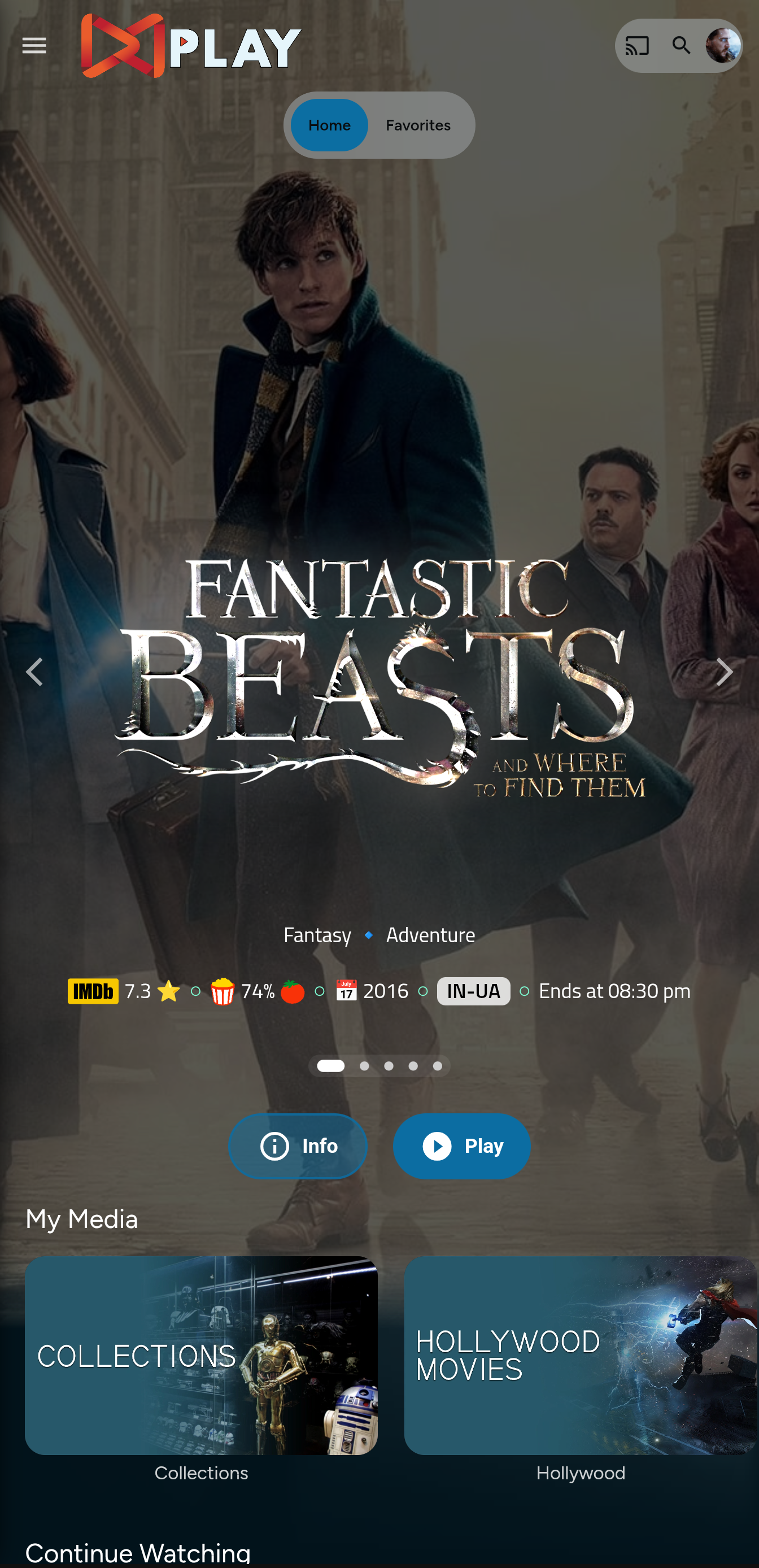
Mobile Layout
Prepping the files
index.html
- Navigate to your
jellyfin-webfolder and search for the file index.html. (You can use any code editor, just remember to open it with administrator privileges.) - Search for
</head> - Just before the
</head>, plug the below code
    <link rel="preconnect" href="https://fonts.googleapis.com" />
    <link rel="preconnect" href="https://fonts.gstatic.com" crossorigin />
    <link
      rel="stylesheet"
      href="https://fonts.googleapis.com/css2?family=Archivo+Narrow:ital,wght@0,400..700;1,400..700&family=IBM+Plex+Mono:wght@400;600&display=swap"
    />
    <link rel="stylesheet" href="https://cdn.jsdelivr.net/gh/MakD/Jellyfin-Media-Bar@6/slideshowpure.css" />
    <script defer src="https://cdn.jsdelivr.net/gh/MakD/Jellyfin-Media-Bar@6/slideshowpure.js"></script>
Upgrading from v5
Swap your two old lines for the block above. Three things changed:
- Fonts. v6 uses Archivo Narrow and IBM Plex Mono. It still runs without the font links, it just falls back to Noto Sans and whatever your system uses for monospace, and it will not look right.
asyncbecamedefer.deferwaits for the page to finish parsing and runs scripts in order.asyncfires whenever the download happens to land, which is less predictable.@latestbecame@6.@latestfollows the newest tag, so a future v7 would land on your server without warning.@6keeps you on the 6.x line and still picks up fixes. If you want it frozen, pin an exact version like@6.1.0.
And that is it. Hard refresh your web page (CTRL+Shift+R) twice, and Profit!
Want a Custom List to be showcased instead of random items??
No worries this got you covered.
Steps
- Create a
list.txtfile inside youravatarsfolder. - Paste the item IDs you want to be showcased, one ID per line.
- If you want to give the list a name, put a
#in front of it so the bar skips that line.
# Awesome Playlist Name
ItemID1
ItemID2
ItemID3
ItemID4
ItemID5
The next time it loads, it will display these items.
Filters
Pasting IDs works, but the list goes stale the moment you add something new to your library. If you would rather it kept itself up to date, use a filter line instead of an ID:
# Christmas
tag:Christmas
genre:Family
Whatever matches gets pulled in when the page loads, so you set it up once and leave it alone. Handy for seasonal stuff you would otherwise have to rebuild every year.
Keys you can use:
| Key | Matches on |
|---|---|
genre: |
Genre |
tag: |
Tag |
studio: |
Studio |
year: |
Release year |
person: |
Anyone in the cast or crew |
rating: |
Official rating, so PG-13, TV-MA and friends |
A few things worth knowing:
- Commas mean "or".
genre:Action, Comedygets you both. - Every line is its own filter and the results get added together. Two lines will not narrow each other down, so there is no way to ask for action films that are also from 2024.
- Feel free to mix filter lines and item IDs in the same file.
- Watch your spelling. If the bar does not recognise a line it skips it and tells you why in the browser console (F12), along with the keys it was expecting.
- If nothing at all matches, you get the usual random items rather than an empty bar.
Settings
Click the gear on the bar and pick what you want. Whatever you choose is saved in your own browser, so everyone on the server can set it up how they like without stepping on each other. Nothing to install and no files to edit.
Running the server and want to set the defaults for everybody, or stop people changing something? You can do that from index.html.
Server-wide defaults
Drop this in above the script tag you added earlier:
<script>
  window.SlideshowConfig = {
    libraries: ["Movies", "4K Movies"],
    trailerLibraries: ["4K Movies"],
    lock: ["libraries"],
  };
</script>
It has to sit before the <script defer ...> line. Put it after and the bar has already started by the time it runs.
librarieslimits which libraries the bar pulls from. Use the names exactly as they show up in your sidebar. Leave it out and it uses all of them.trailerLibrariesdecides which of those are allowed to autoplay a trailer. Everything else gets a still backdrop. Useful if you want trailers on films but not on the kids library.lockgreys those settings out in the gear panel so nobody can change them. Drop it if you only meant to set a starting point.
Any setting works in here, not just these three. Get a library name wrong and the console will tell you, listing the names it actually found, which is usually enough to spot the typo.
Uninstall the Bar
Roll Back
Restore the index.html file / remove the lines added and you are good to go!!!
License

This project is licensed under a DBAD license prohibiting any commercial use or redistribution.
All modifications must be contributed back to this repository.
Attribution to the original author (MakD) is required in any use or derivative work.
Please take a look at the LICENSE file for full terms.