
Media Bar
A Jellyfin Plugin



Reporting Issues
If you face issues relating to the visuals or behaviour of buttons added by the Media Bar please report them on MakD's repo (the one this is forked from). This plugin pulls the content from their repo directly and is only in control of adding it without the need for modifying your JF install files.
Any issues with plugin's settings (including using a playlist as your avatar's playlist) should be made here.
Development Update - 20th August 2025
Hey all! Things are changing with my plugins are more and more people start to use them and report issues. In order to make it easier for me to manage I'm splitting bugs and features into different areas. For feature requests please head over to https://features.iamparadox.dev/ where you'll be able to signin with GitHub and make a feature request. For bugs please report them on the relevant GitHub repo and they will be added to the project board when I've seen them. I've found myself struggling to know when issues are made and such recently so I'm also planning to create a system that will monitor a particular view for new issues that come up and send me a notification which should hopefully allow me to keep more up to date and act faster on various issues.
As with a lot of devs, I am very momentum based in my personal life coding and there are often times when these projects may appear dormant, I assure you now that I don't plan to let these projects go stale for a long time, there just might be times where there isn't an update or response for a couple weeks, but I'll try to keep that better than it has been. With all new releases to Jellyfin I will be updating as soon as possible, I have already made a start on 10.11.0 and will release an update to my plugins hopefully not long after that version is officially released!
Installation
Prerequisites
- This plugin is based on Jellyfin Version
10.10.7 - The following plugins are required to also be installed, please following their installation guides:
- File Transformation (https://github.com/IAmParadox27/jellyfin-plugin-file-transformation) at least v2.2.1.0
Installation
- Add
https://www.iamparadox.dev/jellyfin/plugins/manifest.jsonto your plugin repositories. - Install
Media Barfrom the Catalogue. - Restart Jellyfin.
- Force refresh your webpage (or app) and you should see your new Media Bar at the top of the home page.
Upcoming Features/Known Issues
If you find an issue with any of the sections or usage of the plugin, please open an issue on GitHub.
FAQ
I've installed the plugins and the media bar doesn't appear. How do I fix?
This is common, particularly on a fresh install. The first thing you should try is the following
- Launch your browsers developer tools
- Open the Network tab across the top bar
- Check the Disable cache checkbox
- Refresh the page while the dev tools are still open
Credits
Credits for this plugin go to @MakD for his original work and to @BobHasNoSoul and @SethBacon for their influence to MakD. For full credits see below in the original README content
Original README
Original README.md from MakD
TODO - Design changes upcoming next release
Thanks to the Man, the Legend BobHasNoSoul for his work on the jellyfinfeatured and SethBacon and TedHinklater for their take on the Jellyfin-Featured-Content-Bar.
Here I present my version of the same with some code improvements, loading optimizations, and Security Enhancements. Works best with the Zombie theme (Shameless Plug), but it fits with every other theme the creators have put their hard work in. You might've to edit the color accents in the CSS to match yours.
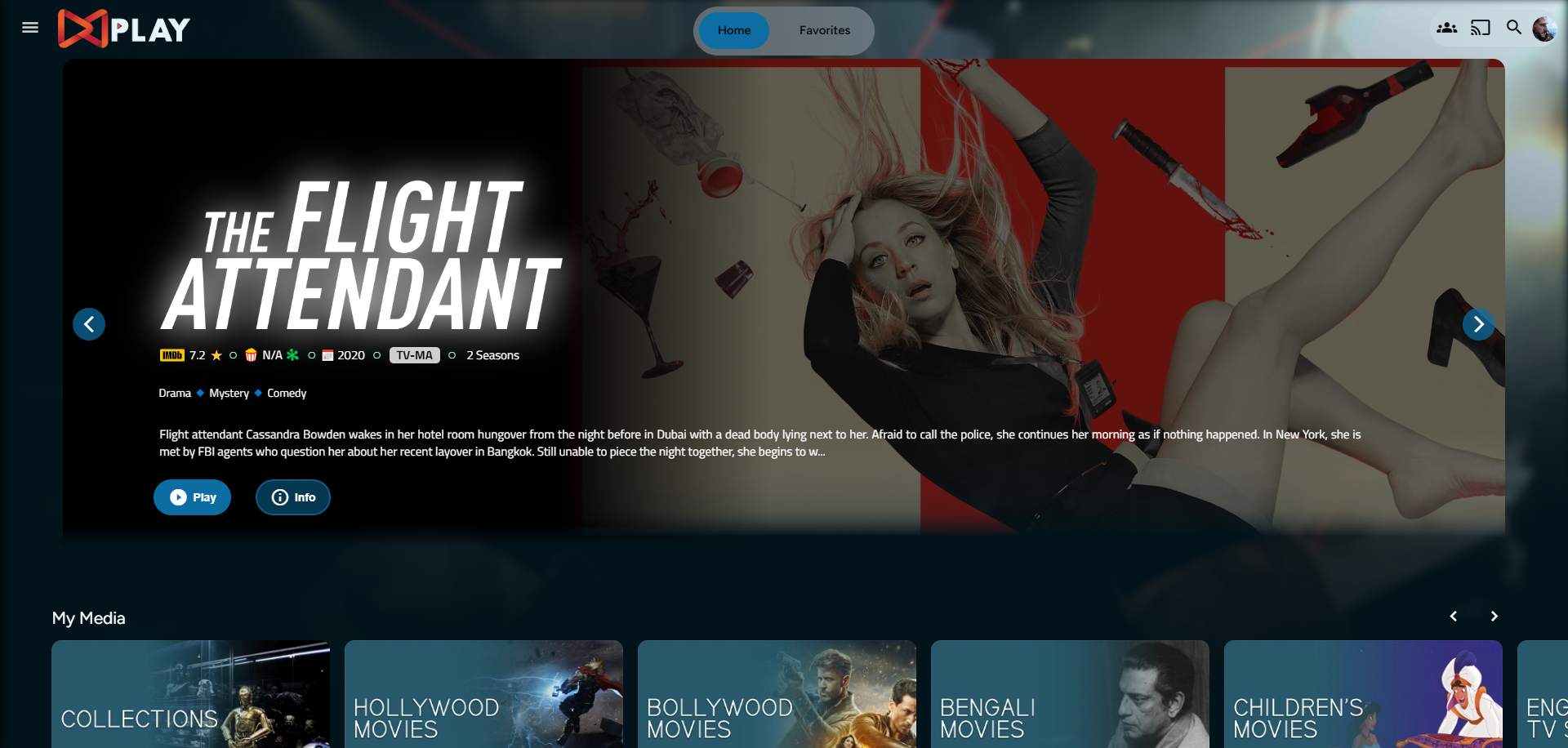
Desktop Layout
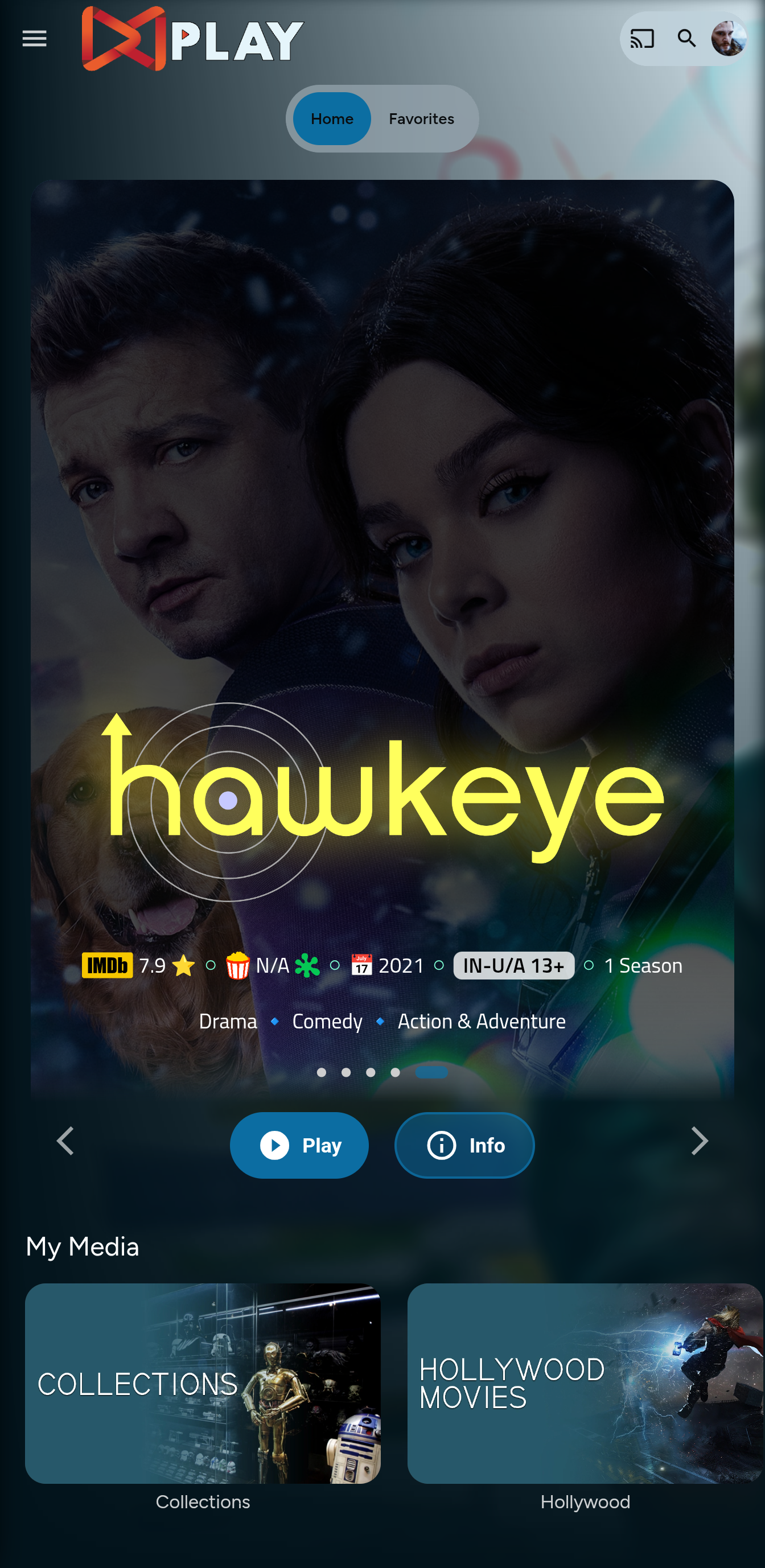
Mobile Layout
Before Installing, please take a backup of your index.html and home-html.xxxxxx.chunk.js files
Prepping the Environment
Steps
- Create a folder
avatarsin yourjellyfin-webfolder. (Usually in C:\Program Files\Jellyfin\Server) - Download the files
slideshowpure.jsandslideshowpure.css - Paste them inside the avatars folder created, and you are ready to venture down the rabbit hole.
Prepping the files
index.html
- Navigate to your
jellyfin-webfolder and search for the file index.html. (you can use any code editor, just remember to open with administrator privileges. - Search for
</body></html> - Just before the
</body, plug the below code
    <script>
      function saveCredentialsToSessionStorage(credentials) {
        try {
          sessionStorage.setItem(
            "json-credentials",
            JSON.stringify(credentials)
          );
          console.log("Credentials saved to sessionStorage.");
        } catch (error) {
          console.error("Error saving credentials:", error);
        }
      }
      function saveApiKey(apiKey) {
        try {
          sessionStorage.setItem("api-key", apiKey);
          console.log("API key saved to sessionStorage.");
        } catch (error) {
          console.error("Error saving API key:", error);
        }
      }
      (function () {
        var originalConsoleLog = console.log;
        console.log = function (message) {
          originalConsoleLog.apply(console, arguments);
          if (
            typeof message === "string" &&
            message.startsWith("Stored JSON credentials:")
          ) {
            try {
              var jsonString = message.substring(
                "Stored JSON credentials: ".length
              );
              var credentials = JSON.parse(jsonString);
              saveCredentialsToSessionStorage(credentials);
            } catch (error) {
              console.error("Error parsing credentials:", error);
            }
          }
          if (
            typeof message === "string" &&
            message.startsWith("opening web socket with url:")
          ) {
            try {
              var url = message.split("url:")[1].trim();
              var urlParams = new URL(url).searchParams;
              var apiKey = urlParams.get("api_key");
              if (apiKey) {
                saveApiKey(apiKey);
              }
            } catch (error) {
              console.error("Error extracting API key:", error);
            }
          }
        };
      })();
    </script>
    <link rel="preload" href="/web/avatars/slideshowpure.css" as="style" />
    <link rel="stylesheet" href="/web/avatars/slideshowpure.css" />
    <script defer src="/web/avatars/slideshowpure.js"></script>
home-html.xxxxxx.chunk.js
- Similarly, search for
home-htmlin thejellyfin-webdirectory. You should be able to see a file namedhome-html.xxxxxx.chunk.jswith random numbers in place of thexxxx. Open it with any code editor with administrator privileges. - Search for
id="homeTab" data-index="0"> - Right after the
>, paste the code block<div id="slides-container"></div><script>slidesInit()</script>
And that is it. Hard refresh your web page (CTRL+Shift+R) twice, and Profit!
Want a Custom List to be showcased instead of random items??
No worries this got you covered.
Steps
- Create a
list.txtfile inside youravatarsfolder. - In line 1 give your list a name.
- Starting line 2, paste the item IDs you want to be showcased, one ID per line. For Example :
Awesome Playlist Name
ItemID1
ItemID2
ItemID3
ItemID4
ItemID5
The next time it loads, it will display these items.