mirror of
https://github.com/IAmParadox27/jellyfin-plugin-media-bar.git
synced 2026-11-08 08:22:26 +01:00

159 lines
5.6 KiB
Markdown
159 lines
5.6 KiB
Markdown
# Jellyfin-Media-Bar - Now with Play Now Function
|
|
|
|
1. Add `https://www.iamparadox.dev/jellyfin/plugins/manifest.json` to your repositories
|
|
2. Install "File Transformation" 2.0.0
|
|
3. Install "Media Bar" 2.0.0
|
|
4. Restart Jellyfin
|
|
|
|
<details>
|
|
<summary>Original README.md from MakD</summary>
|
|
|
|
## TODO - Design changes upcoming next release
|
|
|
|
Thanks to the Man, the Legend [BobHasNoSoul](https://github.com/BobHasNoSoul) for his work on the [jellyfinfeatured](https://github.com/BobHasNoSoul/jellyfin-featured) and [SethBacon](https://forum.jellyfin.org/u-sethbacon) and [TedHinklater](https://github.com/tedhinklater) for their take on the [Jellyfin-Featured-Content-Bar](https://github.com/tedhinklater/Jellyfin-Featured-Content-Bar).
|
|
|
|
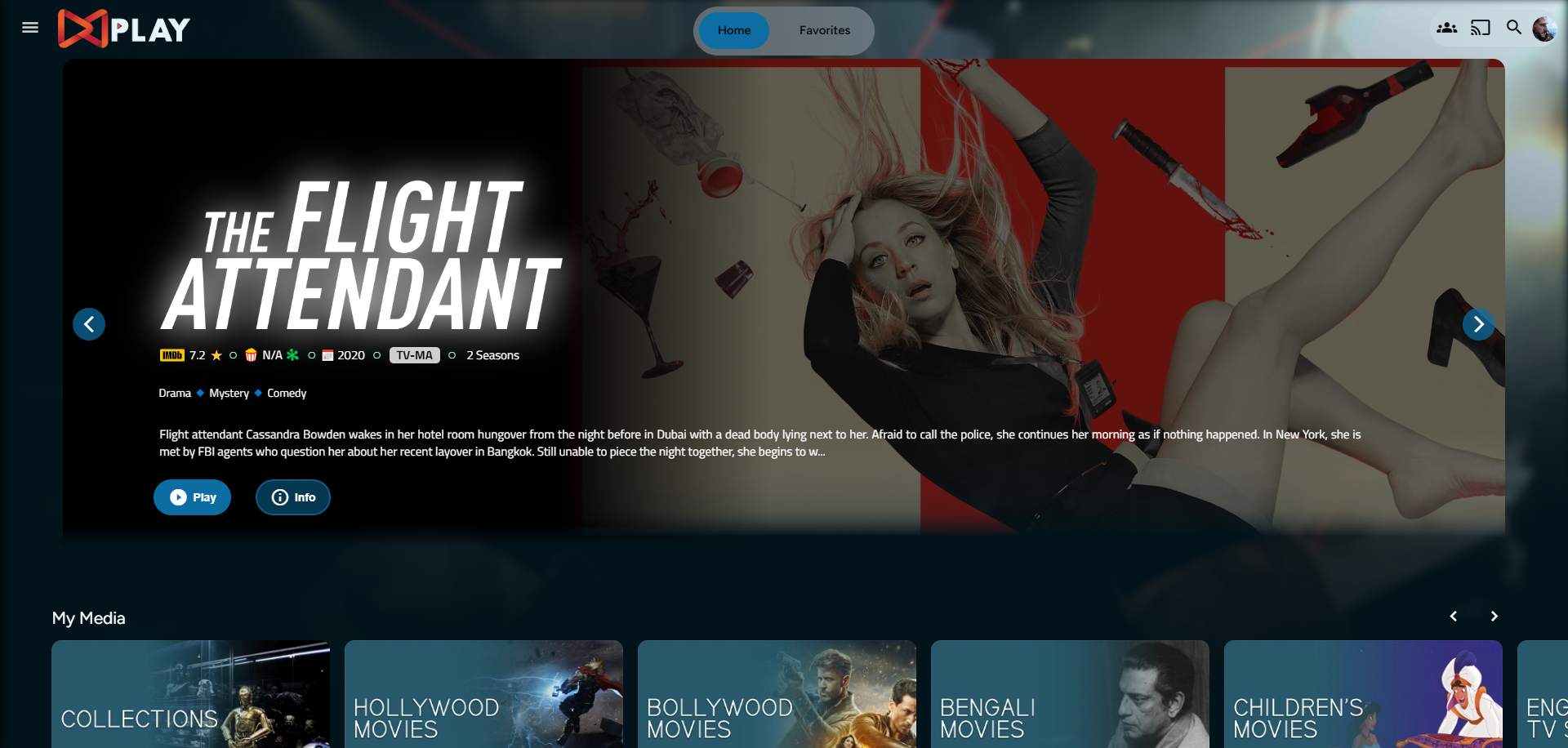
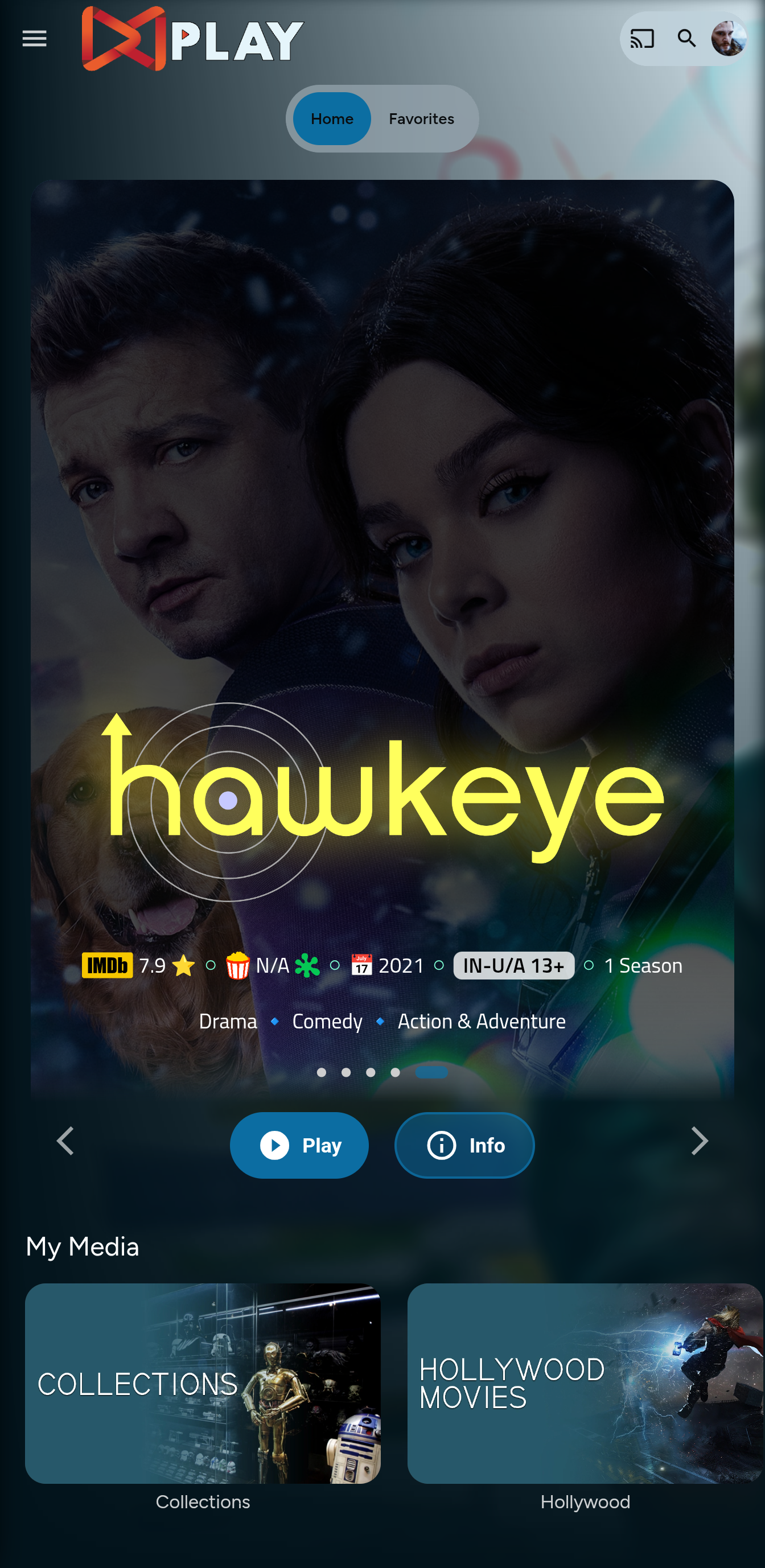
Here I present my version of the same with some code improvements, loading optimizations, and Security Enhancements. Works best with the [Zombie theme](https://github.com/MakD/zombie-release) (_Shameless Plug_), but it fits with every other theme the creators have put their hard work in. You might've to edit the color accents in the CSS to match yours.
|
|
|
|
<details>
|
|
<summary> Desktop Layout </summary>
|
|
|
|
|
|
|
|
</details>
|
|
|
|
<details>
|
|
<summary> Mobile Layout </summary>
|
|
|
|
|
|
|
|
</details>
|
|
|
|
> <ins>**Before Installing, please take a backup of your index.html and home-html.xxxxxx.chunk.js files**<ins>
|
|
|
|
# Prepping the Environment
|
|
|
|
<details>
|
|
|
|
<summary> Steps </summary>
|
|
|
|
1. Create a folder `avatars` in your `jellyfin-web` folder. (Usually in C:\Program Files\Jellyfin\Server)
|
|
2. Download the files `slideshowpure.js` and `slideshowpure.css`
|
|
3. Paste them inside the avatars folder created, and you are ready to venture down the rabbit hole.
|
|
|
|
</details>
|
|
|
|
# Prepping the files
|
|
<details>
|
|
|
|
<summary>index.html</summary>
|
|
|
|
1. Navigate to your `jellyfin-web` folder and search for the file index.html. (you can use any code editor, just remember to open with administrator privileges.
|
|
2. Search for `</body></html>`
|
|
3. Just before the `</body`, plug the below code
|
|
```
|
|
|
|
<script>
|
|
function saveCredentialsToSessionStorage(credentials) {
|
|
try {
|
|
sessionStorage.setItem(
|
|
"json-credentials",
|
|
JSON.stringify(credentials)
|
|
);
|
|
console.log("Credentials saved to sessionStorage.");
|
|
} catch (error) {
|
|
console.error("Error saving credentials:", error);
|
|
}
|
|
}
|
|
function saveApiKey(apiKey) {
|
|
try {
|
|
sessionStorage.setItem("api-key", apiKey);
|
|
console.log("API key saved to sessionStorage.");
|
|
} catch (error) {
|
|
console.error("Error saving API key:", error);
|
|
}
|
|
}
|
|
(function () {
|
|
var originalConsoleLog = console.log;
|
|
console.log = function (message) {
|
|
originalConsoleLog.apply(console, arguments);
|
|
if (
|
|
typeof message === "string" &&
|
|
message.startsWith("Stored JSON credentials:")
|
|
) {
|
|
try {
|
|
var jsonString = message.substring(
|
|
"Stored JSON credentials: ".length
|
|
);
|
|
var credentials = JSON.parse(jsonString);
|
|
saveCredentialsToSessionStorage(credentials);
|
|
} catch (error) {
|
|
console.error("Error parsing credentials:", error);
|
|
}
|
|
}
|
|
if (
|
|
typeof message === "string" &&
|
|
message.startsWith("opening web socket with url:")
|
|
) {
|
|
try {
|
|
var url = message.split("url:")[1].trim();
|
|
var urlParams = new URL(url).searchParams;
|
|
var apiKey = urlParams.get("api_key");
|
|
if (apiKey) {
|
|
saveApiKey(apiKey);
|
|
}
|
|
} catch (error) {
|
|
console.error("Error extracting API key:", error);
|
|
}
|
|
}
|
|
};
|
|
})();
|
|
</script>
|
|
<link rel="preload" href="/web/avatars/slideshowpure.css" as="style" />
|
|
<link rel="stylesheet" href="/web/avatars/slideshowpure.css" />
|
|
<script defer src="/web/avatars/slideshowpure.js"></script>
|
|
```
|
|
</details>
|
|
|
|
<details>
|
|
|
|
<summary>home-html.xxxxxx.chunk.js</summary>
|
|
|
|
1. Similarly, search for `home-html` in the `jellyfin-web` directory. You should be able to see a file named `home-html.xxxxxx.chunk.js` with random numbers in place of the `xxxx`. Open it with any code editor with administrator privileges.
|
|
2. Search for `id="homeTab" data-index="0">`
|
|
3. Right after the `>`, paste the code block `<div id="slides-container"></div><script>slidesInit()</script>`
|
|
|
|
</details>
|
|
|
|
<details>
|
|
|
|
<summary>main.jellyfin.bundle.js</summary>
|
|
|
|
1. Similarly, search for `main.jellyfin.bundle.js` in the `jellyfin-web` directory. Open it with any code editor with administrator privileges.
|
|
2. Search for `this.playbackManager = e;`
|
|
3. Right after the `;`, paste the code block `window.PlaybackManager = this.playbackManager;console.log("PlaybackManager is now globally available:", window.PlaybackManager);`
|
|
|
|
</details>
|
|
|
|
And that is it. Hard refresh your web page (CTRL+Shift+R) twice, and Profit!
|
|
|
|
# Want a Custom List to be showcased instead of random items??
|
|
|
|
No worries this got you covered.
|
|
|
|
## Steps
|
|
|
|
1. Create a `list.txt` file inside your `avatars` folder.
|
|
2. In line 1 give your list a name.
|
|
3. Starting line 2, paste the item IDs you want to be showcased, one ID per line. For Example :
|
|
|
|
```
|
|
Awesome Playlist Name
|
|
ItemID1
|
|
ItemID2
|
|
ItemID3
|
|
ItemID4
|
|
ItemID5
|
|
```
|
|
The next time it loads, it will display these items.
|
|
</details>
|