mirror of
https://github.com/IAmParadox27/jellyfin-plugin-media-bar.git
synced 2026-11-10 08:34:34 +01:00

148 lines
5.4 KiB
Markdown
148 lines
5.4 KiB
Markdown
# Jellyfin-Media-Bar - Now with Play Now Function
|
|
|
|
|
|
Thanks to the Man, the Legend [BobHasNoSoul](https://github.com/BobHasNoSoul) for his work on the [jellyfinfeatured](https://github.com/BobHasNoSoul/jellyfin-featured) and [SethBacon](https://forum.jellyfin.org/u-sethbacon) and [TedHinklater](https://github.com/tedhinklater) for their take on the [Jellyfin-Featured-Content-Bar](https://github.com/tedhinklater/Jellyfin-Featured-Content-Bar).
|
|
|
|
Here I present my version of the same with some code improvements, loading optimizations, and Security Enhancements. Works best with the [Zombie theme](https://github.com/MakD/zombie-release) (_Shameless Plug_ `@import url(https://cdn.jsdelivr.net/gh/MakD/zombie-release@latest/zombie_revived.css);`, visit the repo for more color schemes), but it fits with every other theme the creators have put their hard work in. You should edit the color accents in the CSS to match yours.
|
|
|
|
> <ins>**Before Installing, please take a backup of your index.html, main.jellyfin.bundle.js and home-html.xxxxxx.chunk.js files**<ins>
|
|
|
|
<details>
|
|
<summary> Desktop Layout - Normal </summary>
|
|
|
|
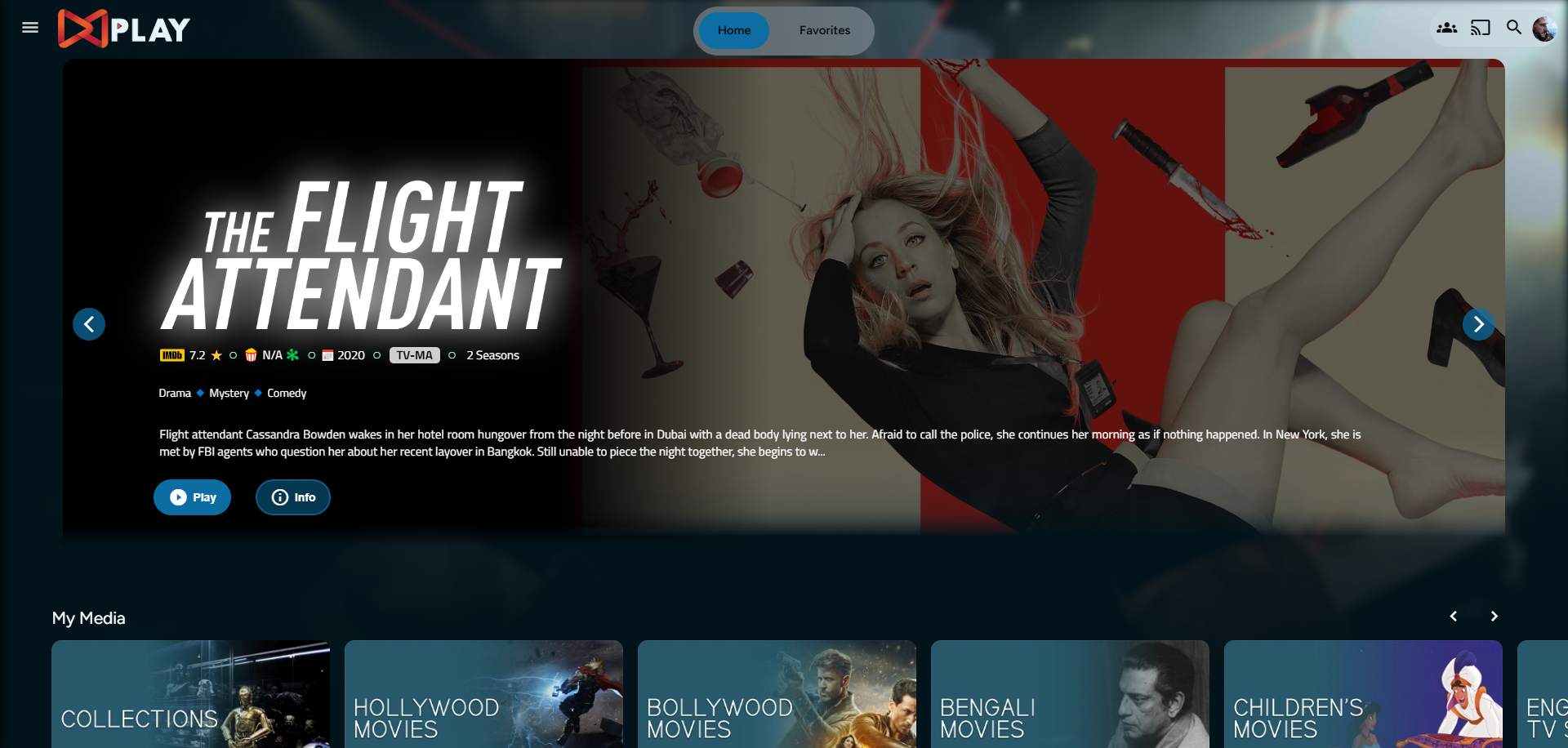
|
|
|
|
</details>
|
|
|
|
<details>
|
|
<summary> Desktop Layout - Fullscreen </summary>
|
|
|
|
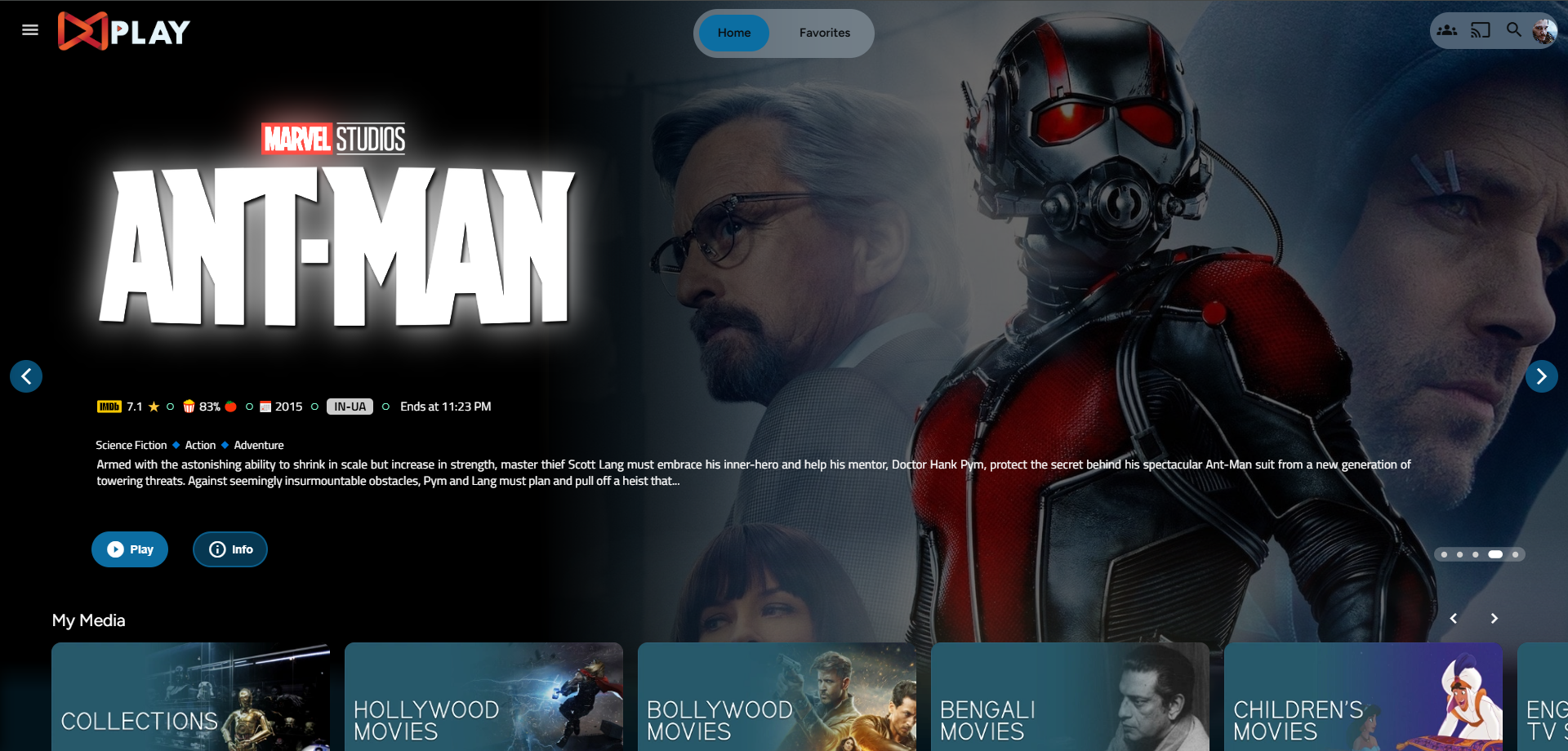
|
|
|
|
- Download the slideshowpure-fullsreen.css, rename it to `slideshowpure,css`, and replace the default CSS with the full-screen one.
|
|
|
|
</details>
|
|
|
|
<details>
|
|
|
|
<summary> Mobile Layout - Fullscreen </summary>
|
|
|
|
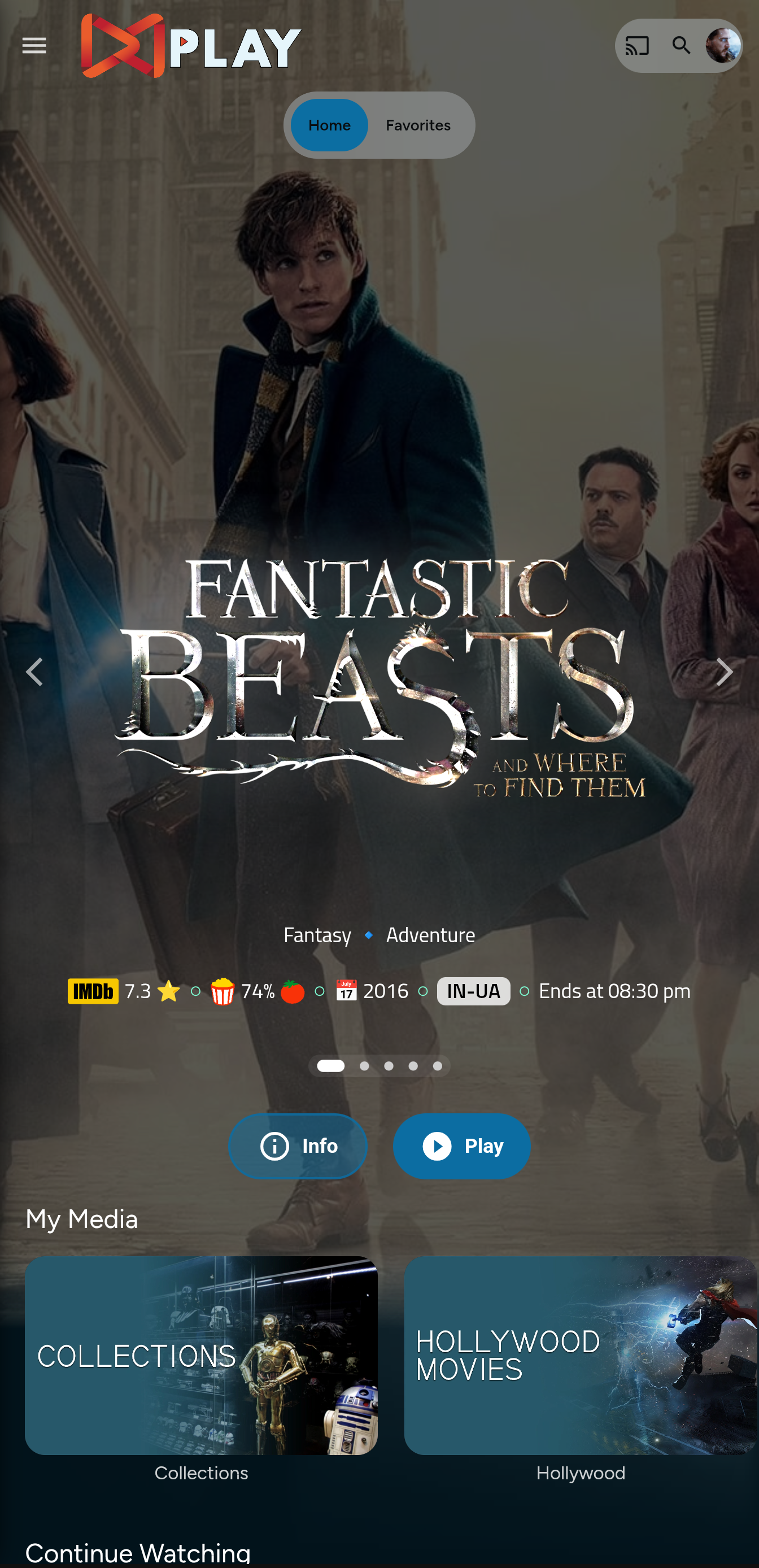
|
|
|
|
</details>
|
|
|
|
<details>
|
|
|
|
<summary> Mobile Layout - Normal </summary>
|
|
|
|
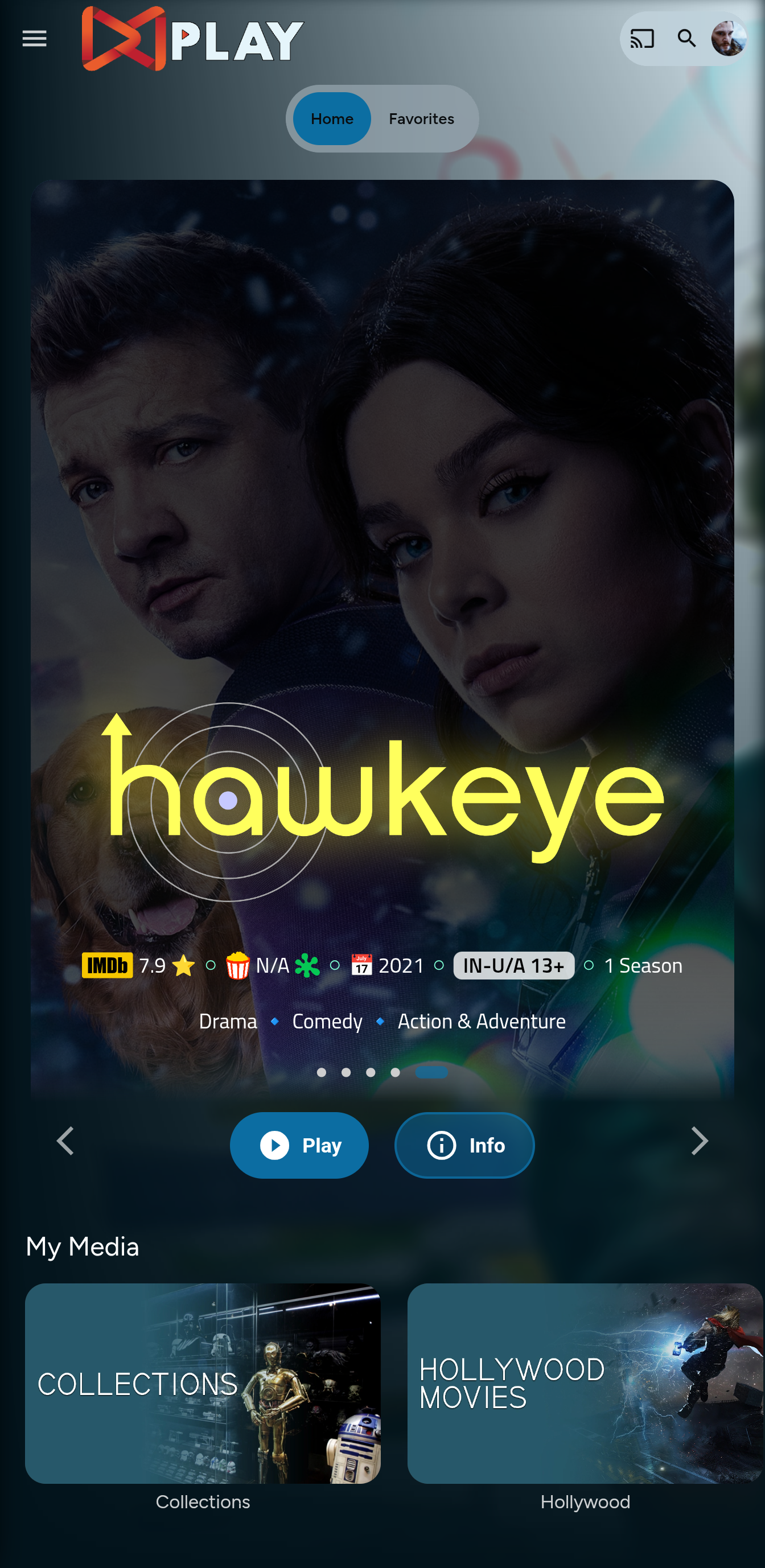
|
|
|
|
</details>
|
|
|
|
|
|
# Prepping the Environment
|
|
|
|
<details>
|
|
|
|
<summary> Steps </summary>
|
|
|
|
1. Create a folder `avatars` in your `jellyfin-web` folder. (Usually in C:\Program Files\Jellyfin\Server)
|
|
2. Download the files `slideshowpure.js` and `slideshowpure.css`
|
|
3. Paste them inside the avatars folder created, and you are ready to venture down the rabbit hole.
|
|
|
|
</details>
|
|
|
|
# Prepping the files
|
|
<details>
|
|
|
|
<summary>index.html</summary>
|
|
|
|
1. Navigate to your `jellyfin-web` folder and search for the file index.html. (you can use any code editor, just remember to open with administrator privileges.
|
|
2. Search for `</body></html>`
|
|
3. Just before the `</body`, plug the below code
|
|
```
|
|
<script>
|
|
(function () {
|
|
// List of CSS selectors for Home buttons
|
|
const buttonSelectors = [
|
|
".headerHomeButton.barsMenuButton",
|
|
".css-17c09up",
|
|
".mainDrawer-scrollContainer > a:nth-child(2)"
|
|
];
|
|
|
|
// Polling interval to check for buttons
|
|
const intervalId = setInterval(function () {
|
|
buttonSelectors.forEach(selector => {
|
|
// Try to find the button
|
|
const homeButton = document.querySelector(selector);
|
|
|
|
// If the button is found
|
|
if (homeButton) {
|
|
// Attach the click event listener if not already added
|
|
if (!homeButton.hasAttribute("data-home-handler")) {
|
|
homeButton.addEventListener("click", function (event) {
|
|
event.preventDefault(); // Prevent default behavior if necessary
|
|
window.location.href = "/web/index.html#/home.html";
|
|
});
|
|
|
|
// Mark the button as handled
|
|
homeButton.setAttribute("data-home-handler", "true");
|
|
}
|
|
}
|
|
});
|
|
|
|
// Stop polling if all buttons are found
|
|
if (buttonSelectors.every(selector => document.querySelector(selector))) {
|
|
clearInterval(intervalId);
|
|
}
|
|
}, 100); // Check every 100ms
|
|
})();
|
|
</script>
|
|
<link rel="preload" href="/web/avatars/slideshowpure.css" as="style" />
|
|
<link rel="stylesheet" href="/web/avatars/slideshowpure.css" />
|
|
<script defer src="/web/avatars/slideshowpure.js"></script>
|
|
```
|
|
</details>
|
|
|
|
<details>
|
|
|
|
<summary>home-html.xxxxxx.chunk.js</summary>
|
|
|
|
1. Similarly, search for `home-html` in the `jellyfin-web` directory. You should be able to see a file named `home-html.xxxxxx.chunk.js` with random numbers in place of the `xxxx`. Open it with any code editor with administrator privileges.
|
|
2. Search for `id="homeTab" data-index="0">`
|
|
3. Right after the `>`, paste the code block `<div id="slides-container"></div><script>slidesInit()</script>`
|
|
|
|
</details>
|
|
|
|
<details>
|
|
|
|
<summary>main.jellyfin.bundle.js</summary>
|
|
|
|
1. Similarly, search for `main.jellyfin.bundle.js` in the `jellyfin-web` directory. Open it with any code editor with administrator privileges.
|
|
2. Search for `this.playbackManager=e,`
|
|
3. Right after the `,`, paste the code block `window.PlaybackManager = this.playbackManager;console.log("PlaybackManager is now globally available:", window.PlaybackManager);`
|
|
|
|
</details>
|
|
|
|
And that is it. Hard refresh your web page (CTRL+Shift+R) twice, and Profit!
|
|
|
|
# Want a Custom List to be showcased instead of random items??
|
|
|
|
No worries this got you covered.
|
|
|
|
## Steps
|
|
|
|
1. Create a `list.txt` file inside your `avatars` folder.
|
|
2. In line 1 give your list a name.
|
|
3. Starting line 2, paste the item IDs you want to be showcased, one ID per line. For Example :
|
|
|
|
```
|
|
Awesome Playlist Name
|
|
ItemID1
|
|
ItemID2
|
|
ItemID3
|
|
ItemID4
|
|
ItemID5
|
|
```
|
|
The next time it loads, it will display these items.
|